Official website links end with .gov.sg
 Oobee
OobeeUnder the Hood: How the Oobee Engine Works
Every tool in the suite runs on the same smart oobee engine. Here is how a scan works from start to finish:
- Finding the Pages
The product uses a smart web crawler to automatically navigate and map out a website's layout. For deep scans, the next-generation Oobee Intelligent Crawler quickly explores a site to uncover hidden pages and potential defects. - Testing the Code
Oobee opens each page just like a real person would. It can follow custom-recorded paths to log into secure test environments, fill out forms, and handle interactive steps like file uploads. Once inside, it automatically tests the code against global accessibility standards (WCAG) and Singapore’s Digital Services Standard (DSS). - Simulating Different Devices
Website layouts change depending on screen size. The engine tests the exact same pages across mobile, tablet, and desktop configurations at the same time to catch responsive design bugs that break on smaller screens. -
Providing Actionable Fixes
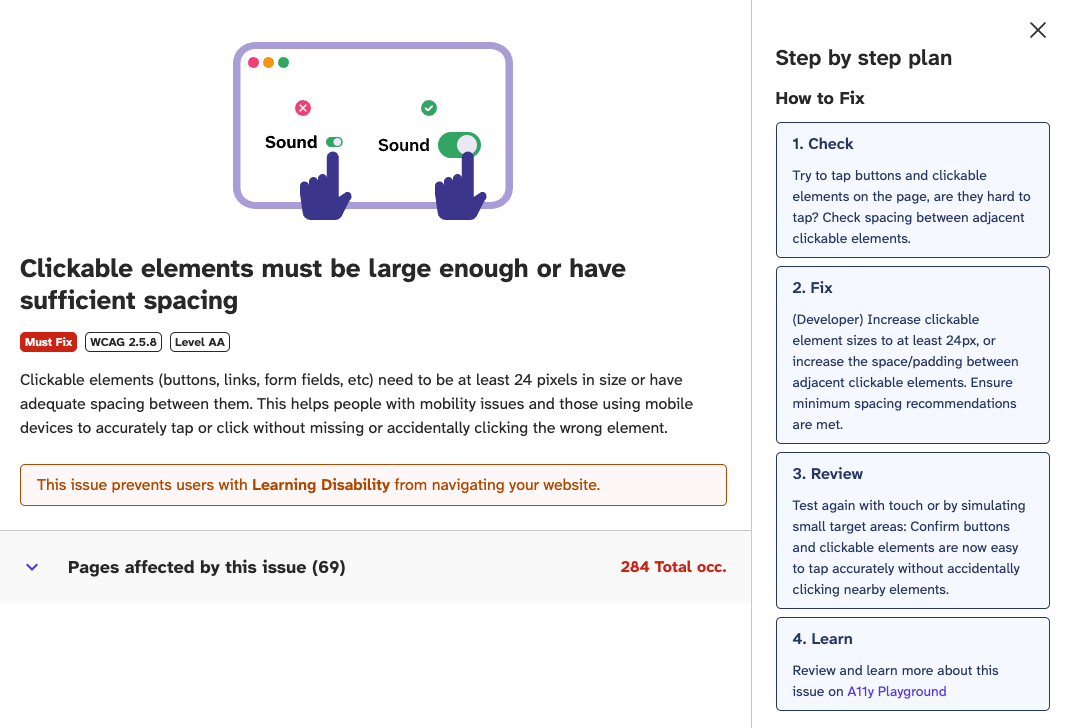
Instead of confusing technical error logs, the suite gives straightforward instructions to resolve issues:- Visual Context: Shows screenshots of the exact problem.
- Code Precision: Pinpoints the precise broken HTML code and its location.
- Step-by-Step Guides: Explains exactly how to fix the broken element.
- AI Patches: Delivers instant, single-click code corrections right inside the code editor. (Dev Suite)
What Oobee Looks Out For
The tool automatically categorises findings into critical blockers (Must-Fix) and general improvements (Good-to-Fix). It primarily focuses on the most common digital barriers that impact seniors and users with diverse abilities:
- Hard-to-Read Text: Flags low colour contrast between text and backgrounds that makes reading difficult for seniors or users with low vision.
- Missing Image Descriptions: Spots images without "alt-text," which leaves screen readers unable to explain the image to blind users.
- Unlabeled Forms and Buttons: Catches input fields, dropdowns, or buttons that lack clear text labels, making it impossible for assistive tools to announce what they do.
- Broken Keyboard Navigation: Ensures a website can be fully navigated using just a keyboard, which is essential for individuals with motor impairments who cannot use a mouse.
- Undeclared Page Language: Verifies that the website’s primary language is explicitly stated in the code so screen readers automatically use the correct pronunciation.
Visit the A11y Playground to deepen your accessibility knowledge and learn practical ways to build inclusive web services.
Was this article useful?