Official website links end with .gov.sg
 Signify
Video tutorial (Signify via email)
The signer (or signee) refers to the recipients of the signable document. This can be members of the public or internal staff. Email mode refers to signers who begin their journey with an email sent by Signify.
Video:
Video tutorial (Signify via links)
The signer (or signee) refers to the recipients of the signable document. This can be members of the public or internal staff. Link mode refers to signers who begin their journey with a URL shared by the administrator.
Video:
Text tutorial (Signify via email and links)
Step 1: Receive sign-able document sent by Signify through email or link
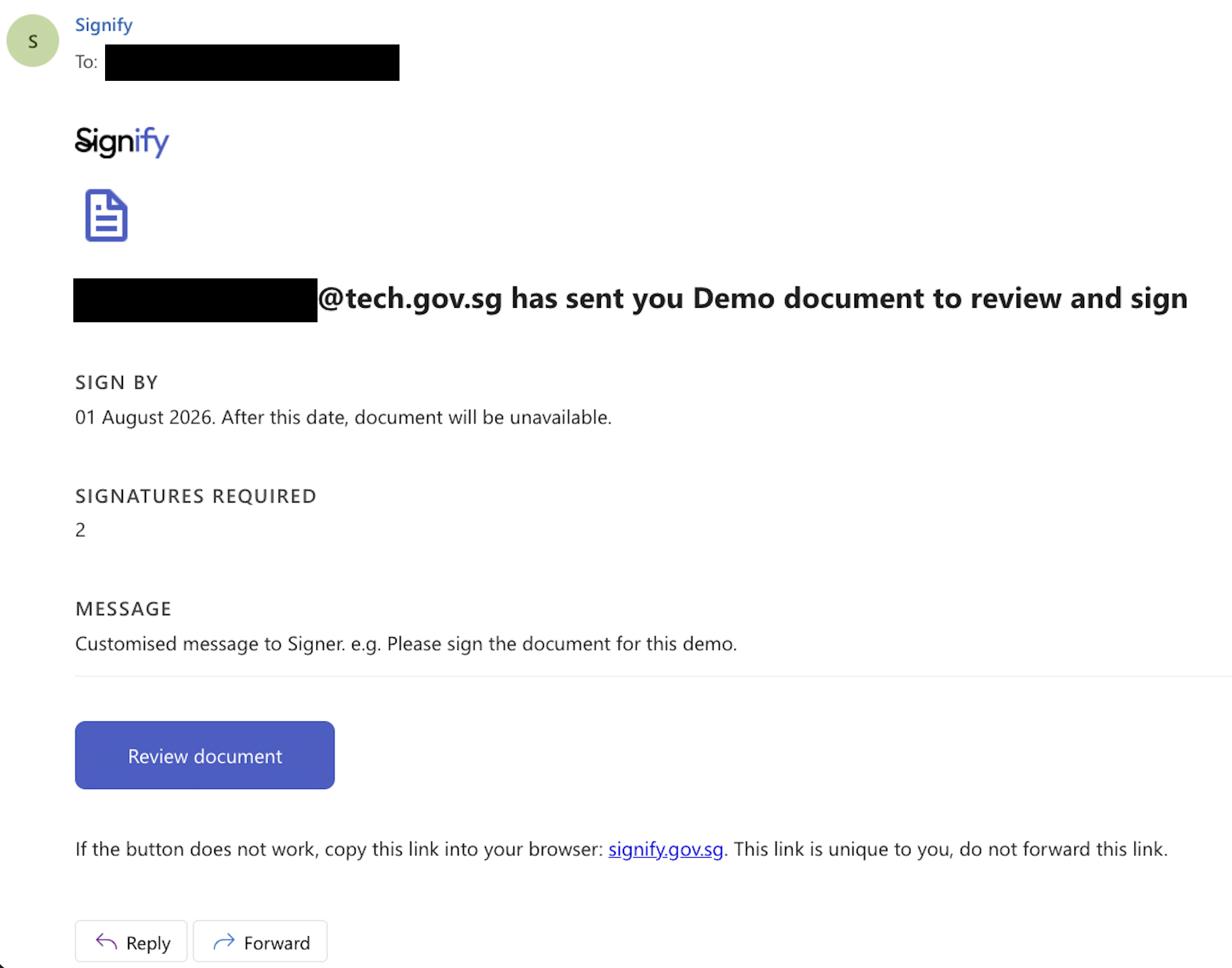
Step 2: Login into Signify with Singpass
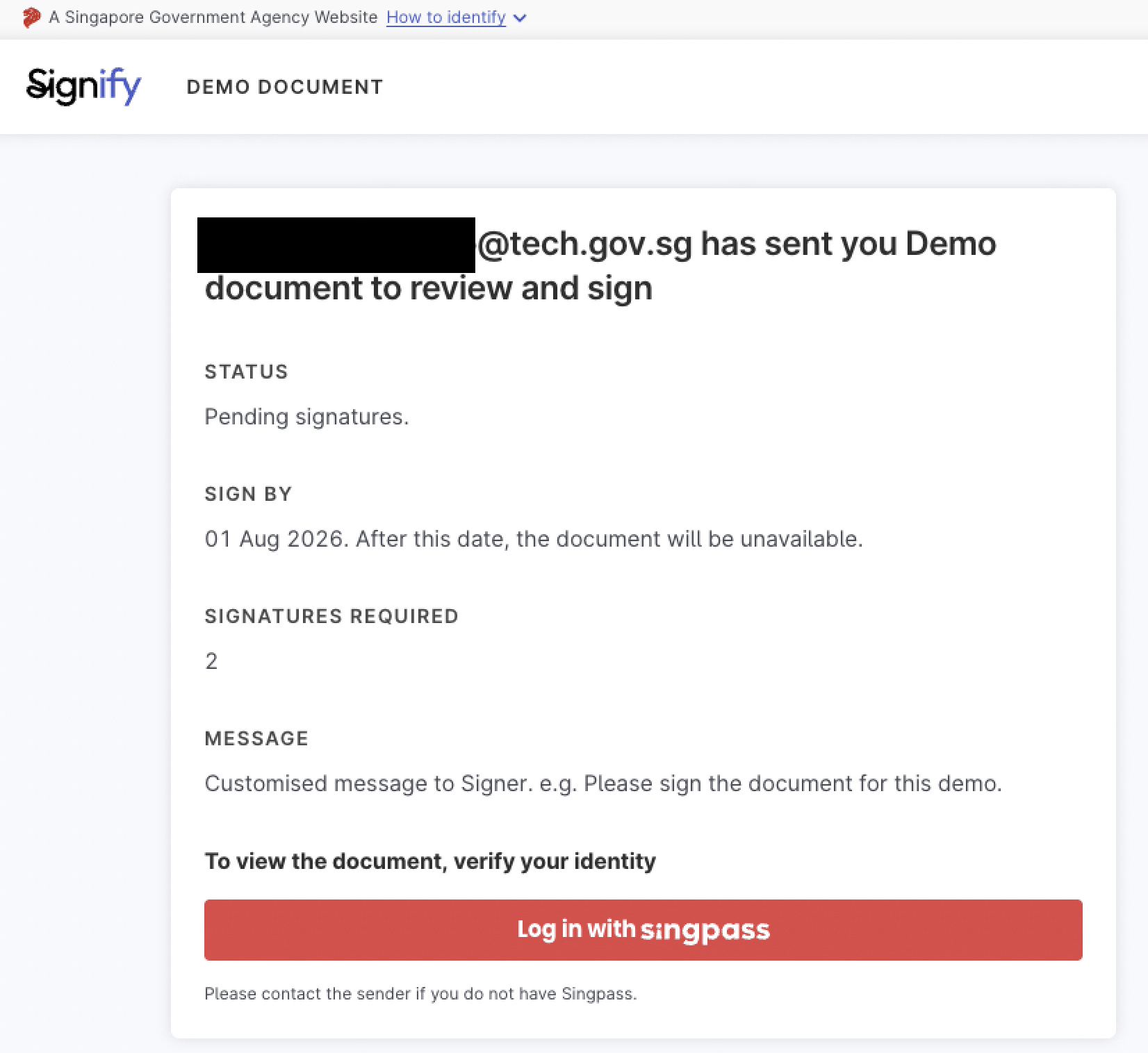
Step 3: Press the "Click to sign" boxes
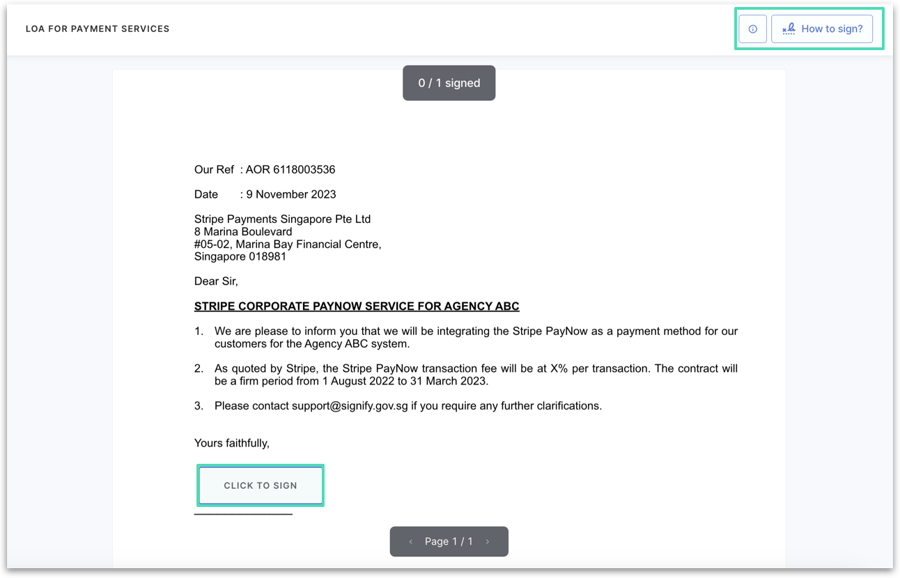
Step 4: Scan Singpass and approve
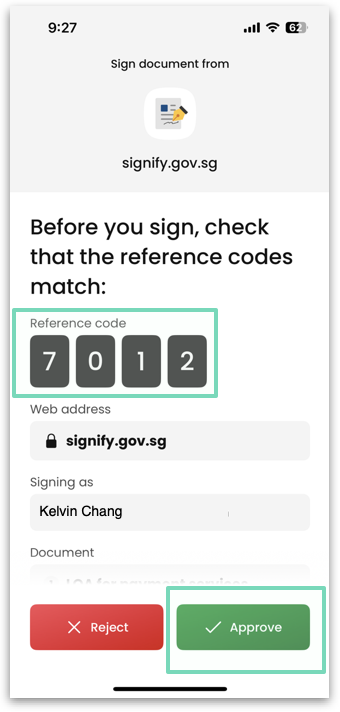
Verify reference code and approve. Do note that once this approve button is confirmed, the document is legally binding with a secure electronic signature. Image below is for reference and may not match the code above.
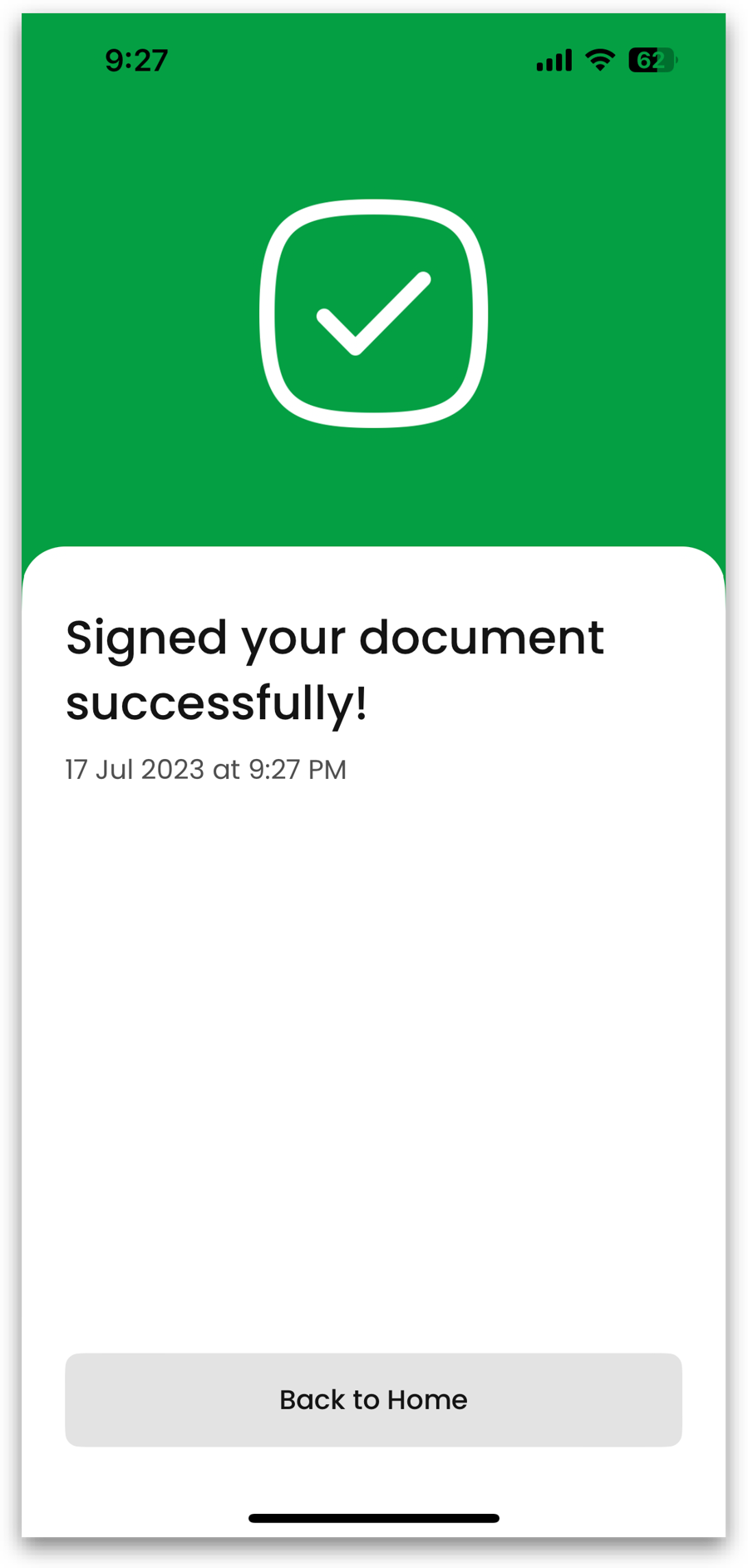
Step 5: A completely signed document can be downloaded for safe-keeping
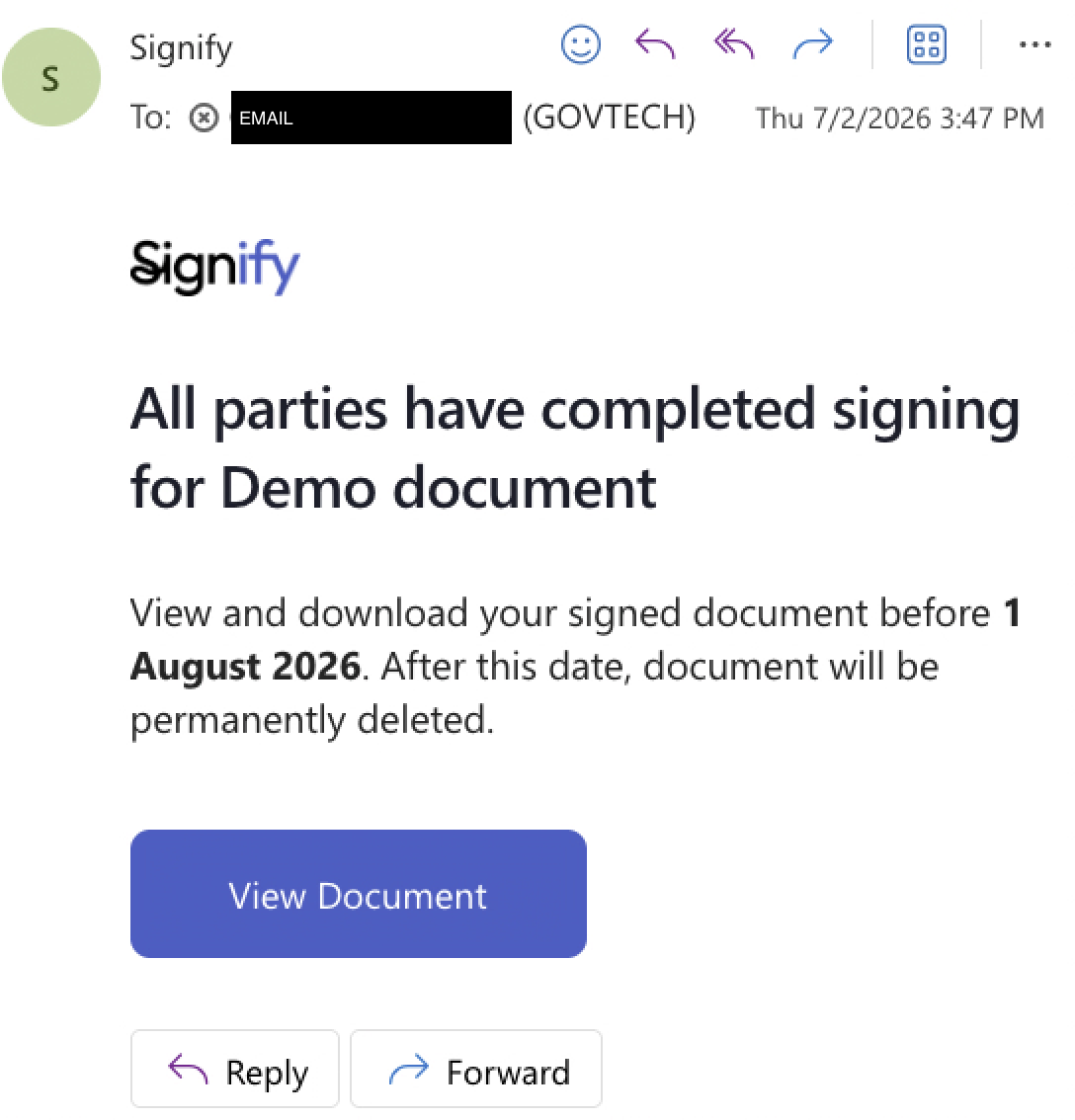
Signers can log in to the Signify portal via their unique document URL or by clicking the View Document button in the email. In email mode, once all signatures are completed, all signers will receive a notification email similar to the one shown below.
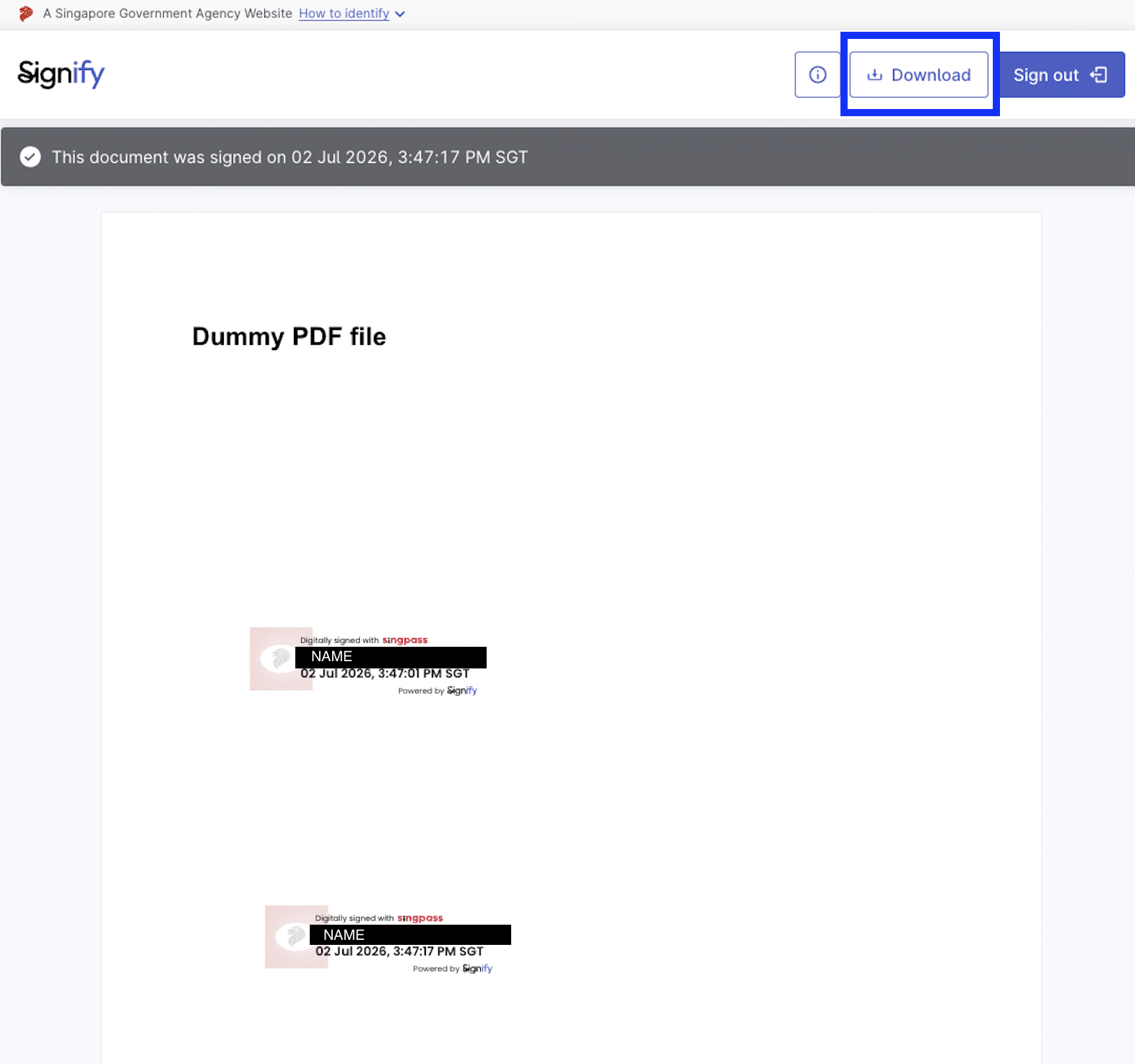
Once inside, signers can view and save the fully signed document by clicking the Download button.
Was this article useful?